

How to Connect Google Drive to Tenali and Train It to Answer Questions from Your PDFs
This step-by-step guide shows you how to connect Google Drive to Tenali. Once linked, you can upload any PDF from Google Drive and ask Tenali questions directly from your data.
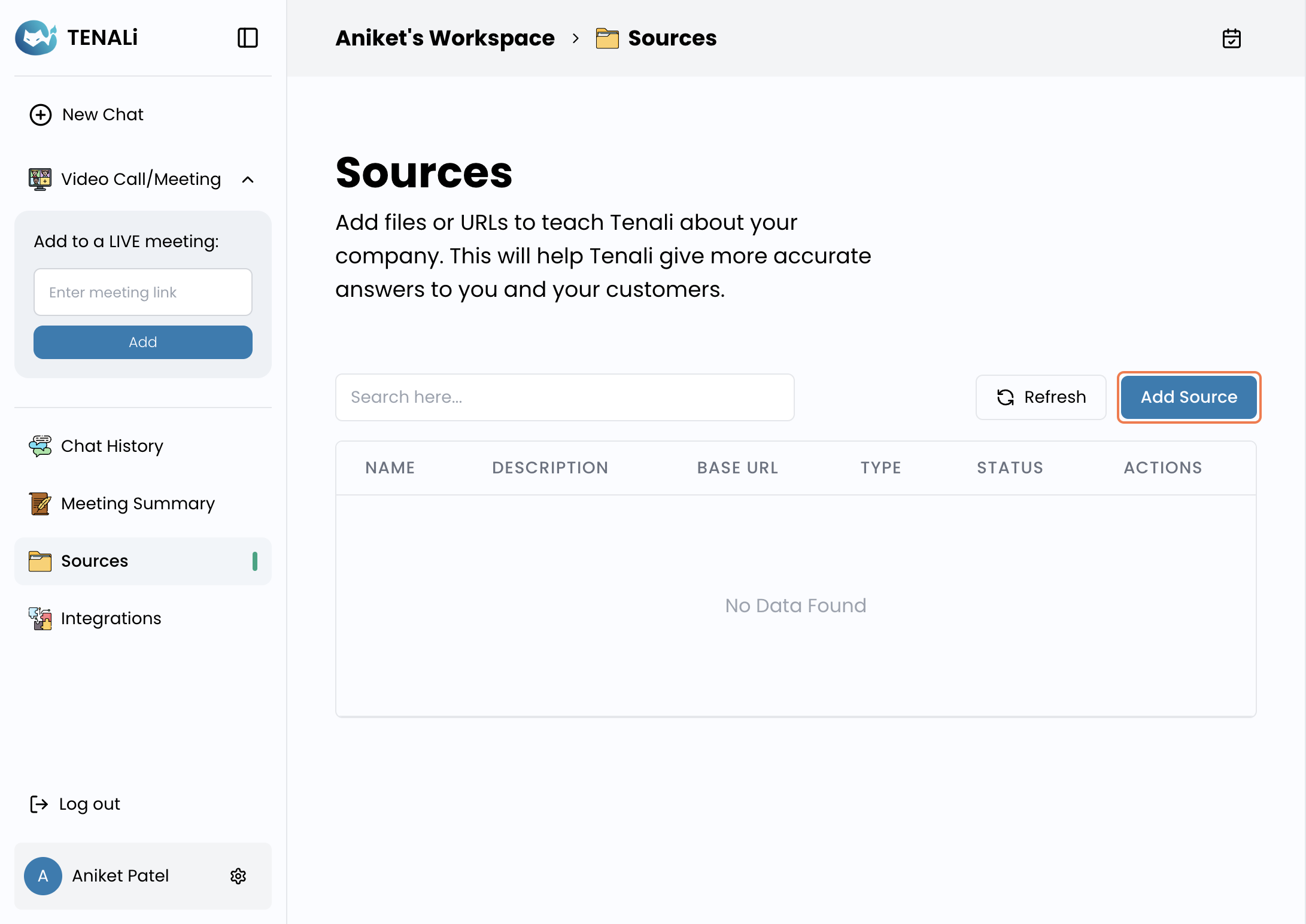
1. Click on 'Add Source'.
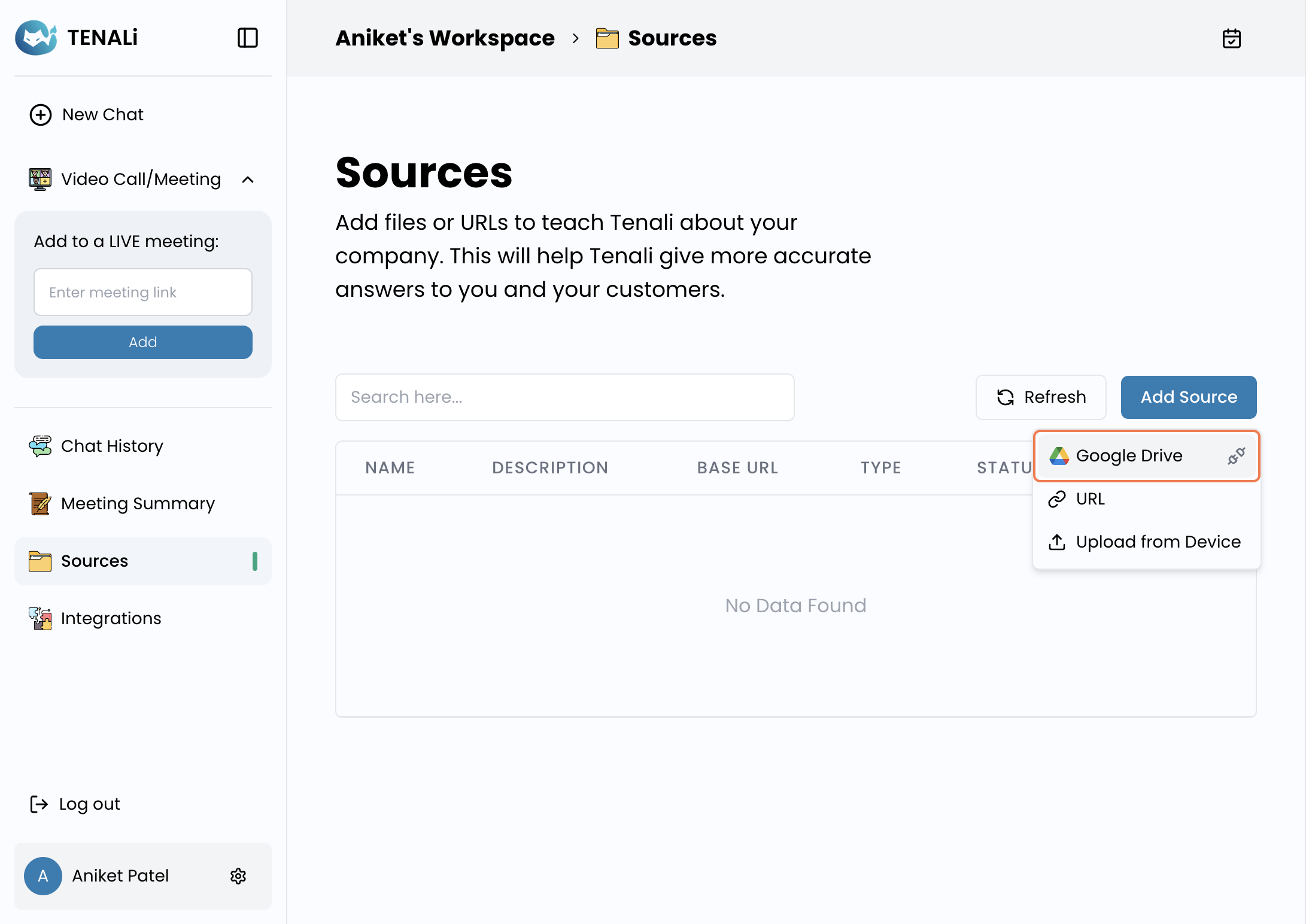
2. Click on 'Google Drive'.
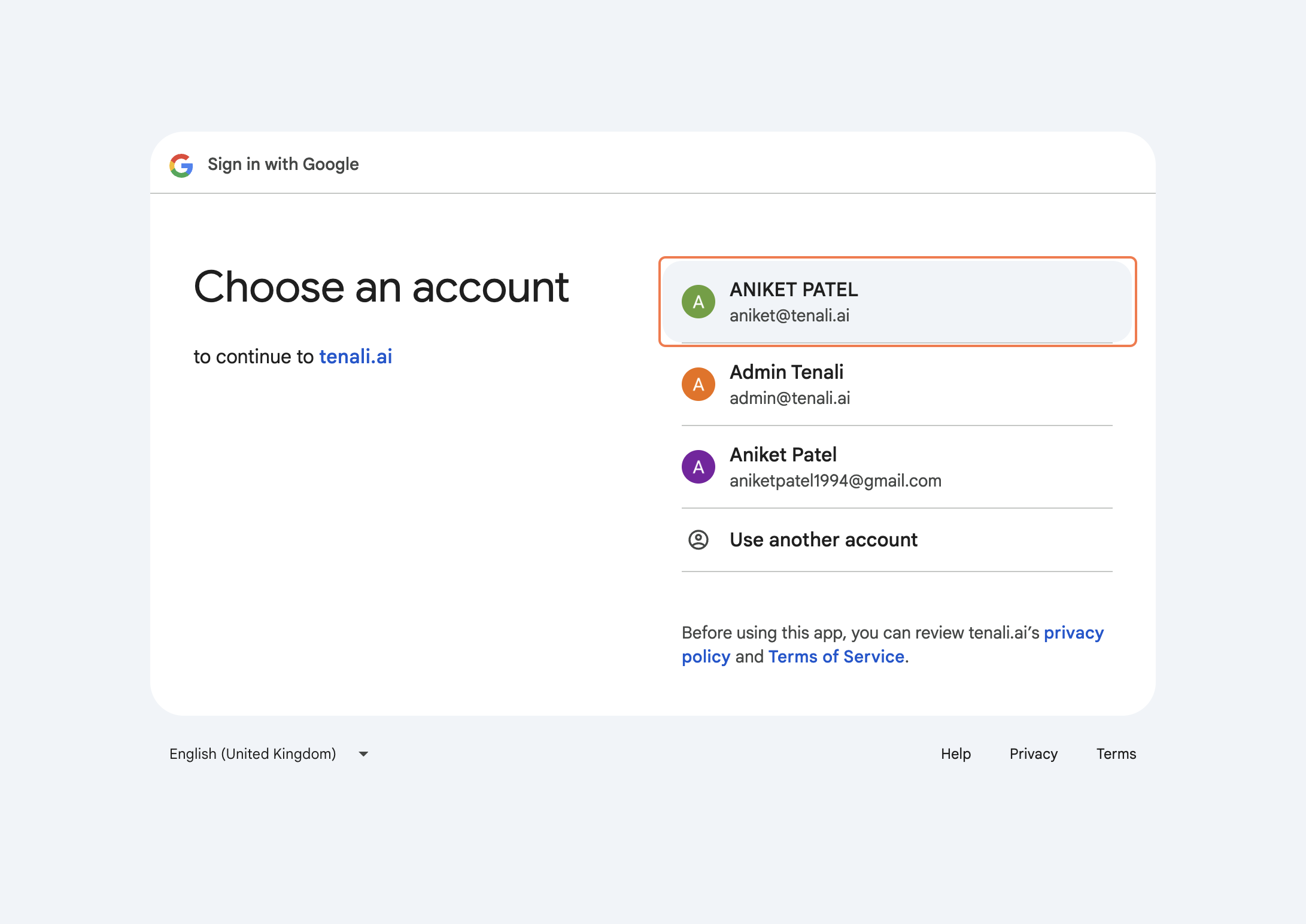
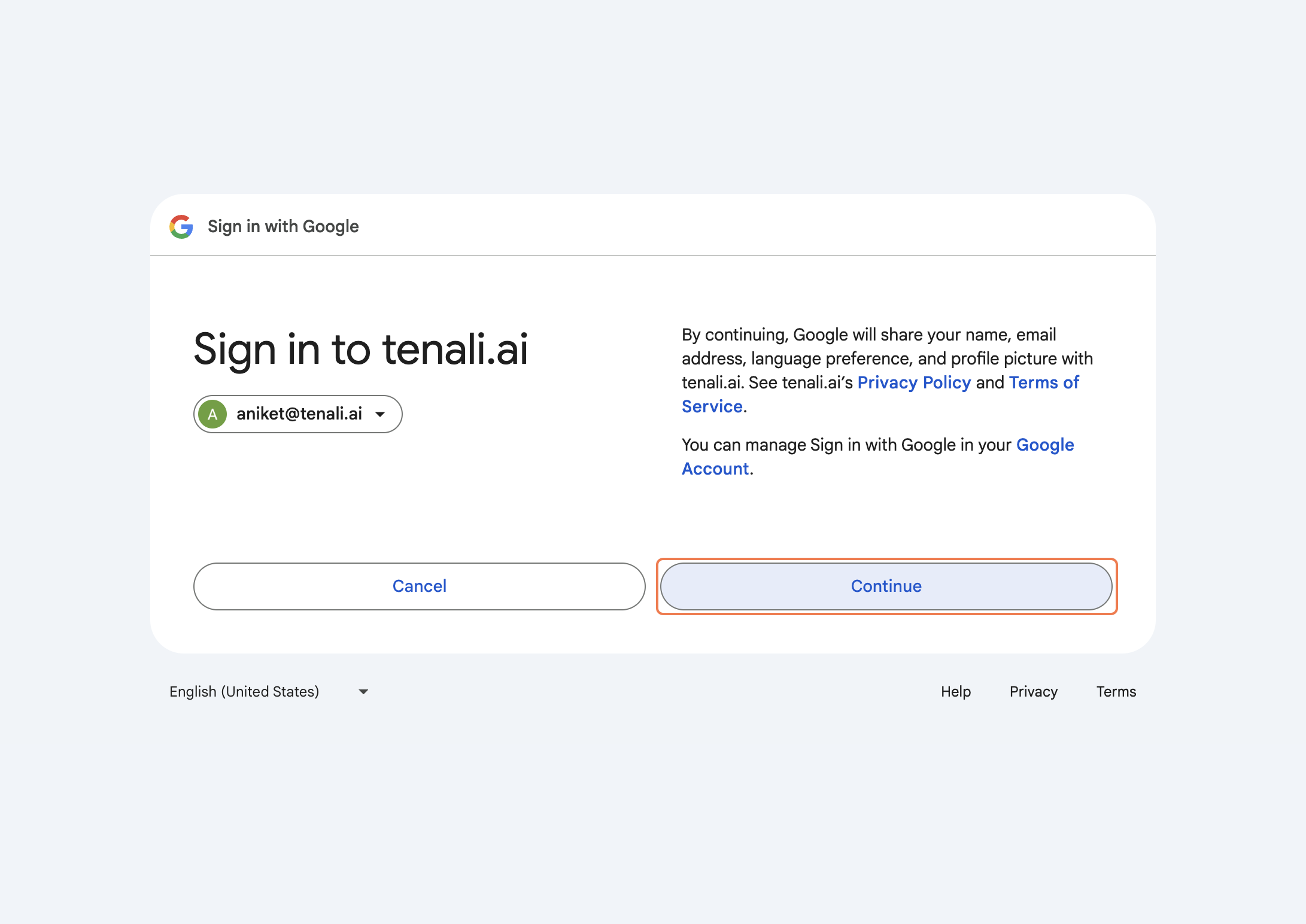
3. Click on your preferred 'Gmail Account'.
4. Click on 'Continue'.
5. Click on 'Allow'.
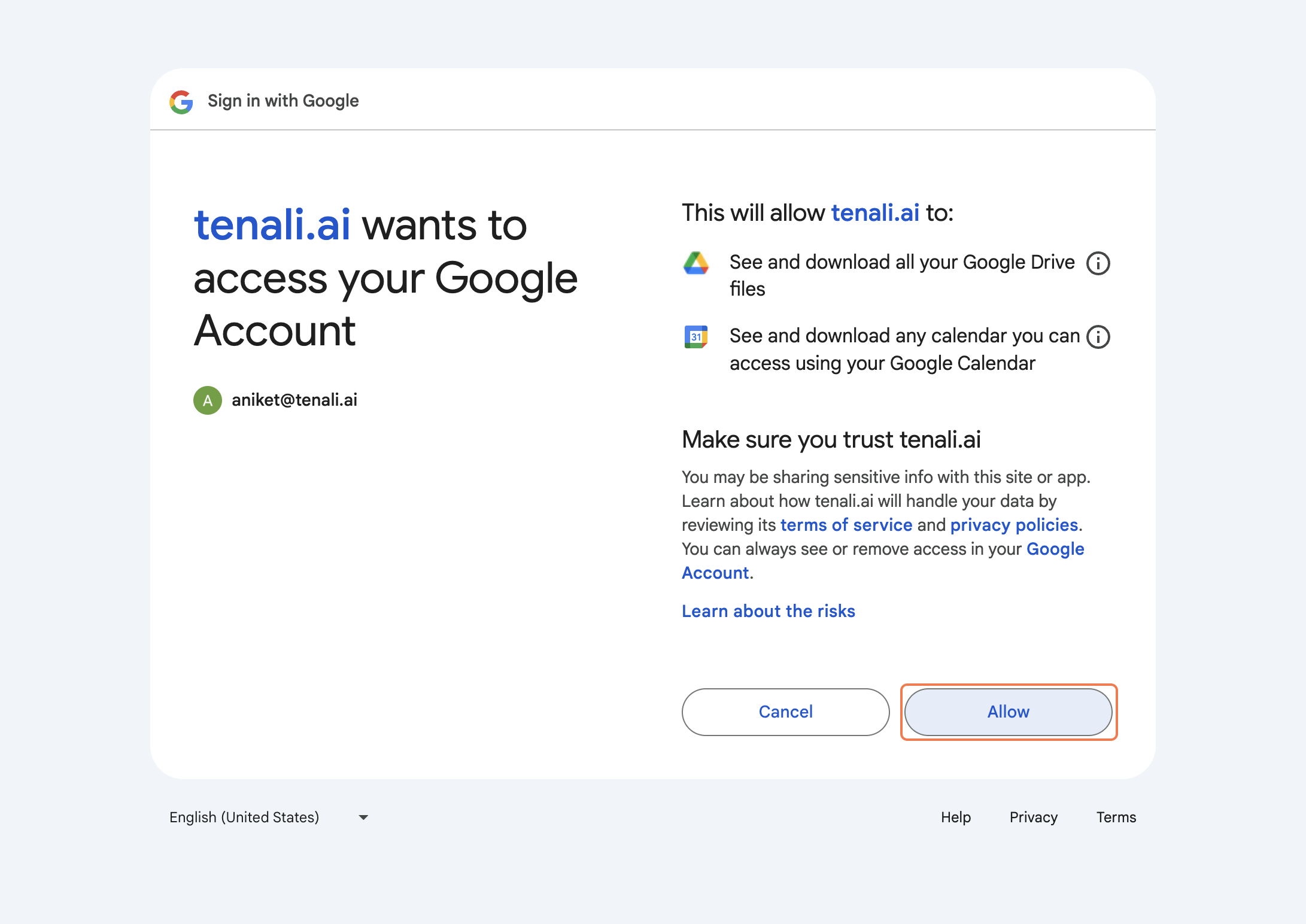
Voila! You have now linked your Google Drive with Tenali AI.
Note: This does not mean that all your data has been added to Tenali. For your privacy, you can choose which data you want to give Tenali. follow steps below to upload data to Tenali so it can help you answer any question. Any data you upload will be available to only your workspace and no one can access it, neither any Tenali users or anyone from Tenali.
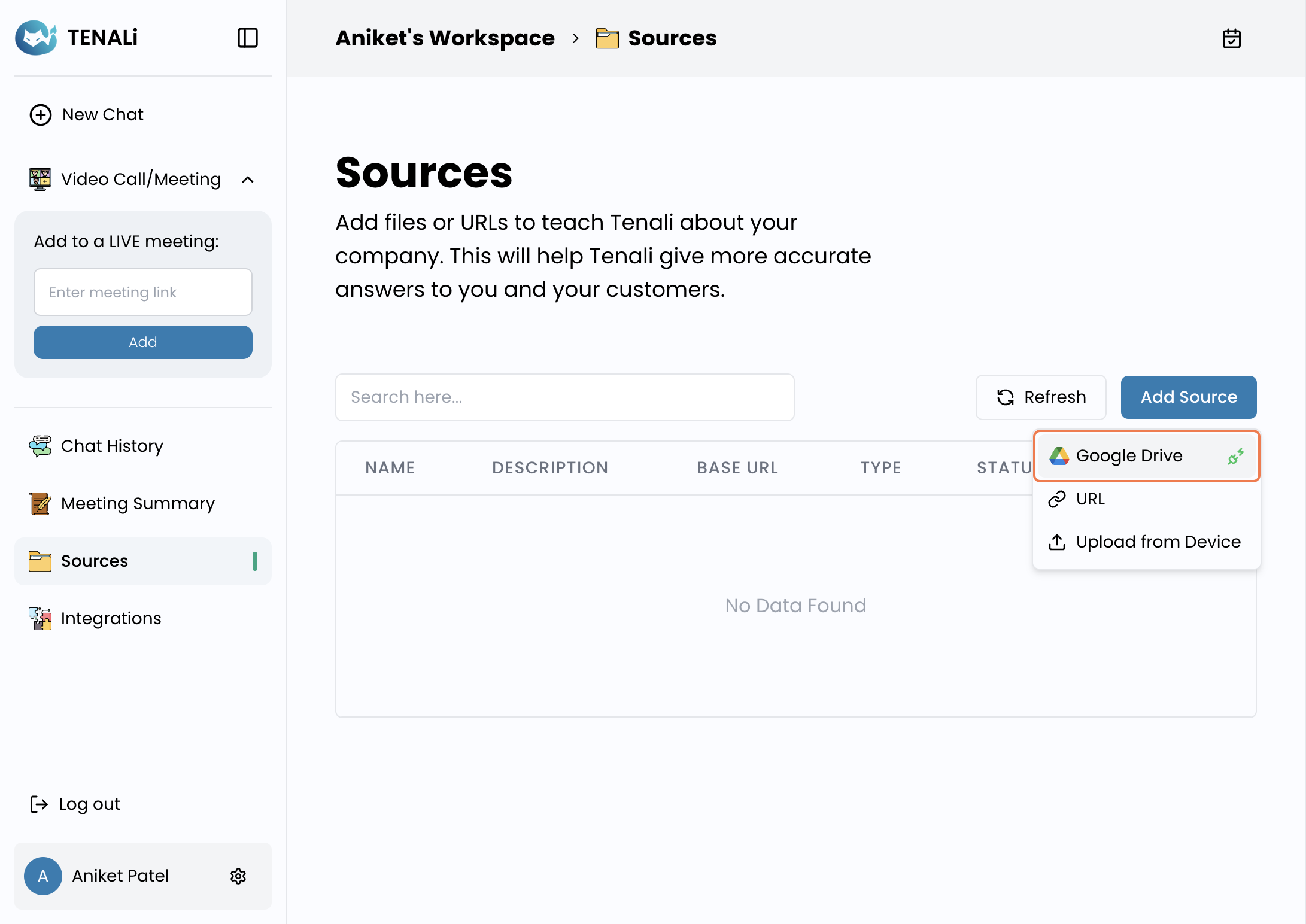
6. Click on 'Add Source'
7. Click on 'Google Drive'. You will see the socket turn green if you have successfully connected your Google Drive.
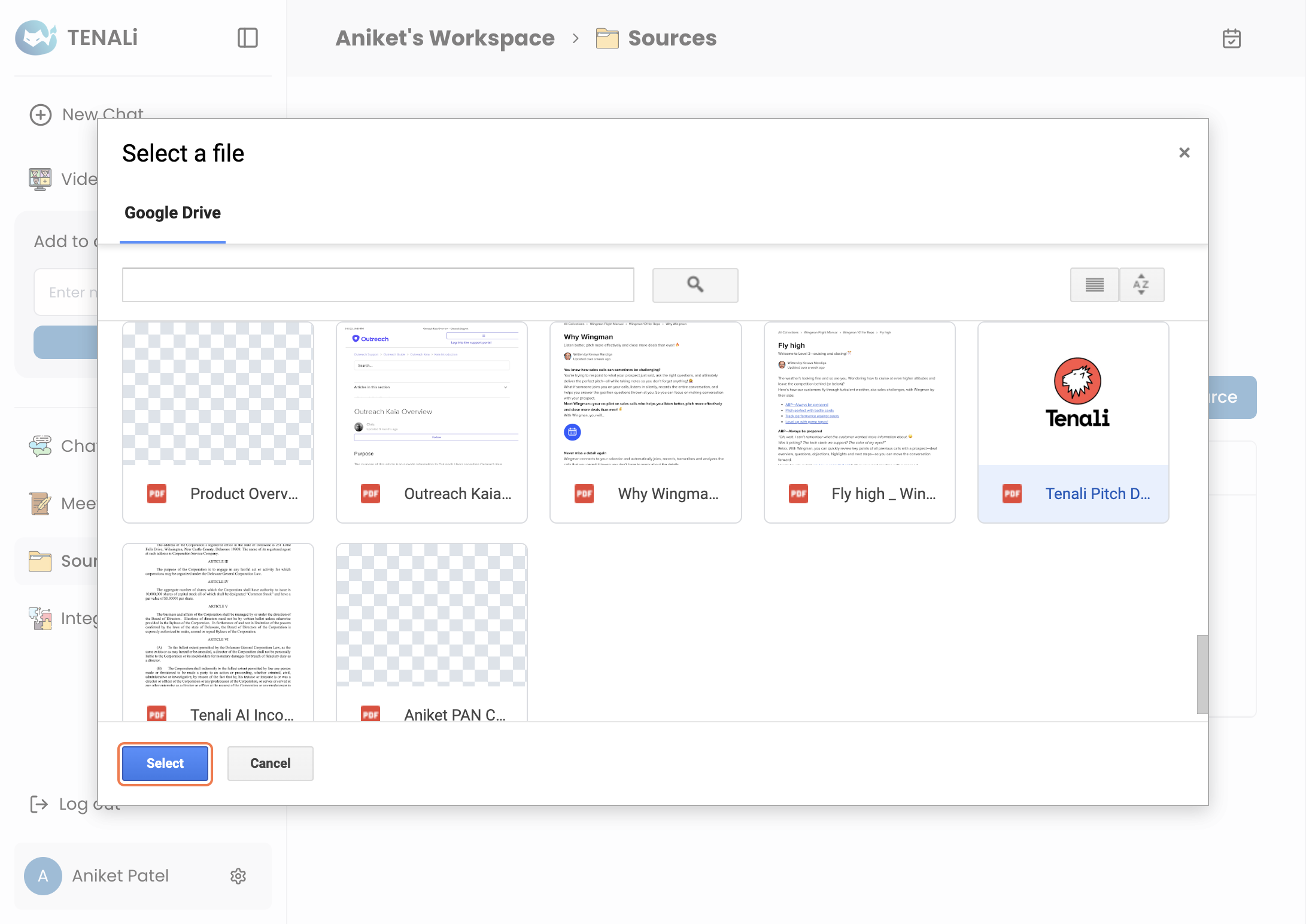
8. A file-picker will open up showing your data from Google Drive. 'Pick the PDF' you want Tenali to train from.
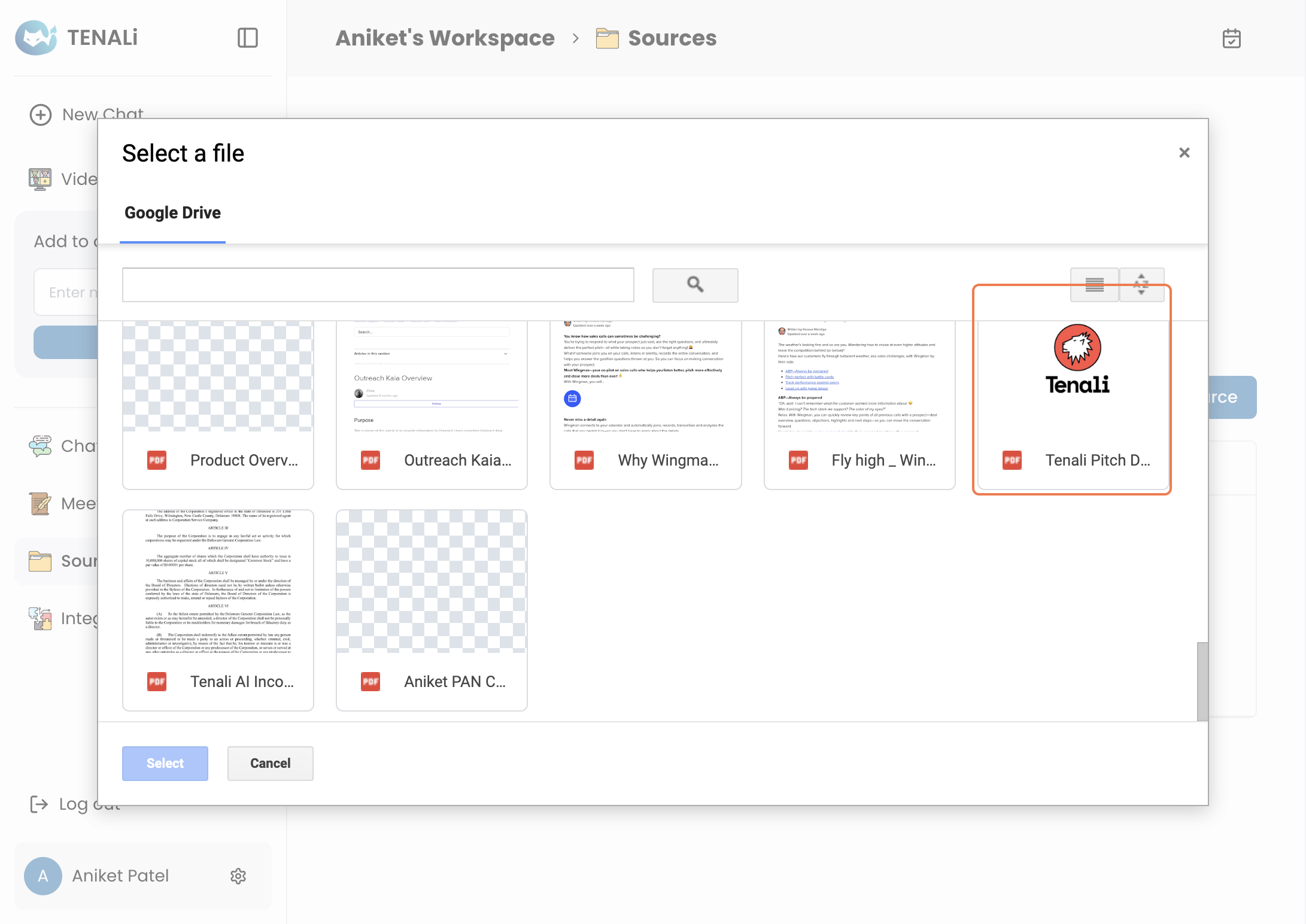
9. Click on 'Select'.
You can now go to 'New Chat' and ask any question about the data you uploaded. If you want any help please reach out to aniket@tenali.ai.